
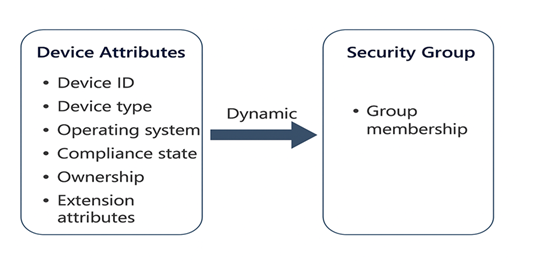
- Extension attributes (1–15) are predefined string fields available on Entra ID device objects.
- They are exposed to Microsoft Graph as the extensionAttributes property.
- These attributes can store custom values like department, environment tags (e.g., Prod, Dev), or ownership details.
- Dynamic Group Membership: Use extension attributes in membership rules for security or Microsoft 365 groups.
- Policy Targeting: Apply Defender for Endpoint (MDE) policies, Conditional Access or Intune policies to devices based on custom tags.
For details on configuration of the policies refer below documentation links.
https://learn.microsoft.com/en-us/defender-endpoint/manage-security-policies
https://learn.microsoft.com/en-us/intune/intune-service/
https://learn.microsoft.com/en-us/entra/identity/conditional-access/
- Use Microsoft Graph PowerShell to authenticate and update device properties.
- Required permission: “Device.ReadWrite.All”.
- create app registration in Entra ID with permissions Device.ReadWriteall and Grant admin Consent.
Register an app
How to register an app in Microsoft Entra ID – Microsoft identity platform | Microsoft Learn
Graph API permissions Reference. For updating Entra ID device properties you need “Device.ReadWrite.all” permission and Intune administrator role to run the script.
Microsoft Graph permissions reference – Microsoft Graph | Microsoft Learn
- Below is the script
Important things to note and update the script with your custom values.
a) update the path of the excel file in the script. column header is ‘DeviceName’
Note: You may want to use CSV instead of excel file if Excel is not available on the admin workstation running this process.
b) update the credential details – tenantId,clientId & clientSecret in the script. Client id and client secret are created as a part of app registration.
c) update the Externsionattribute and value in the script. This is the value of the extension attribute you want to use in dynamic membership rule creation.
___________________________________________________________________________
#Acquire token
$tenantId = “xxxxxxxxxxxxxxxxxxxxx”
$clientId = “xxxxxxxxxxxxxxxx”
$clientSecret = “xxxxxxxxxxxxxxxxxxxx”
$excelFilePath = “C:Tempdevices.xlsx” # Update with actual path
$tokenResponse = Invoke-RestMethod -Uri "https://login.microsoftonline.com/$tenantId/oauth2/v2.0/token" -Method POST -Body $tokenBody
$accessToken = $tokenResponse.access_token
# Import Excel module and read device names
Import-Module ImportExcel $deviceList = Import-Excel -Path $excelFilePath
foreach ($device in $deviceList) { $deviceName = $device.DeviceName # Assumes column header is ‘DeviceName’
Get device ID by name$headers = @{ "Authorization" = "Bearer $accessToken"} $deviceLookupUri = "https://graph.microsoft.com/beta/devices?`$filter=displayName eq '$deviceName'"
try { $deviceResponse = Invoke-RestMethod -Uri $deviceLookupUri -Headers $headers -Method
GET
} catch { Write-Host "Error querying device: $deviceName - $_" continue
}
if ($null -eq $deviceResponse.value -or $deviceResponse.value.Count -eq 0) {
Write-Host "Device not found: $deviceName"
continue
}
$deviceId = $deviceResponse.value[0].id
# Prepare PATCH request
$uri = "https://graph.microsoft.com/beta/devices/$deviceId"
$headers["Content-Type"] = "application/json"
$body = @{ extensionAttributes = @{ extensionAttribute6 = "MDE" } } | ConvertTo-Json -Depth 3
try {
$response = Invoke-RestMethod -Uri $uri -Method Patch -Headers $headers -Body $body
Write-Host "Updated device: $deviceName"} catch {
Write-Host "Failed to update device: $deviceName - $_"
}
}
Write-Host “Script execution completed.”
________________________________________________________________________________________________________________________
Here’s a simple summary of what the script does:
- Gets an access token from Microsoft Entra ID using the app’s tenant ID, client ID, and client secret (OAuth 2.0 client credentials flow).
- Reads an Excel file (update the path in $excelFilePath, and ensure the column header is DeviceName) to get a list of device names.
- Loops through each device name from the Excel file:
- Calls Microsoft Graph API to find the device ID by its display name.
- If the device is found, sends a PATCH request to Microsoft Graph to update extensionAttribute6 with the value “MDE”.
- Logs the result for each device (success or failure) and prints messages to the console.
Once extension attributes are set, you can create a dynamic security group in Entra ID:
- Go to Microsoft Entra admin center → Groups → New group.
- Select Security as the group type and choose Dynamic Device membership.
- Add a membership rule, for example:
| (device.extensionAttributes.extensionAttribute6 -eq “MDE”) |
4. Save the group. Devices with extensionAttribute6 = MDE will automatically join.
- Extension attributes in Entra ID allow custom tagging of devices for automation and policy targeting.
- You can update these attributes using Microsoft Graph PowerShell.
- These attributes can be used in dynamic device group rules, enabling granular MDE policies, Conditional Access and Intune deployments.
Disclaimer
- This script is provided “as-is” without any warranties or guarantees. It is intended for educational and informational purposes only.
- Microsoft and the author assume no responsibility for any issues that may arise from the use or misuse of this script.
- Before deploying in a production environment, thoroughly test the script in a controlled setting and review it for compliance with your organization’s security and operational policies.