
Hi, I’m Helmut Wagensonner, a Cloud Solution Architect at Microsoft. This blog post is about the different ways to handle PAC Scripts in Microsoft Edge. Microsoft Edge (Chromium-based) offers two primary strategies for deploying Proxy Auto-Config (PAC) scripts in enterprise environments. Understanding the difference between these scenarios is critical for managing web traffic routing, application compatibility, and network efficiency across all corporate systems.
In this configuration, Microsoft Edge is explicitly instructed to use a PAC script, bypassing the system’s proxy settings. This method is enforced via Group Policy Objects (GPOs) using the Microsoft Edge Administrative Templates.
Configuration Steps
- Download Microsoft Edge ADMX Templates: Available at Microsoft Edge Enterprise download.
- Import Templates: Copy msedge.admx and relevant language .adml files into your domain controller’s PolicyDefinitions directory.
- Create/Edit a GPO:
- Navigate to: Computer Configuration > Administrative Templates > Microsoft Edge > Proxy server
- Enable the “ProxySettings” policy.

- Configure with JSON:
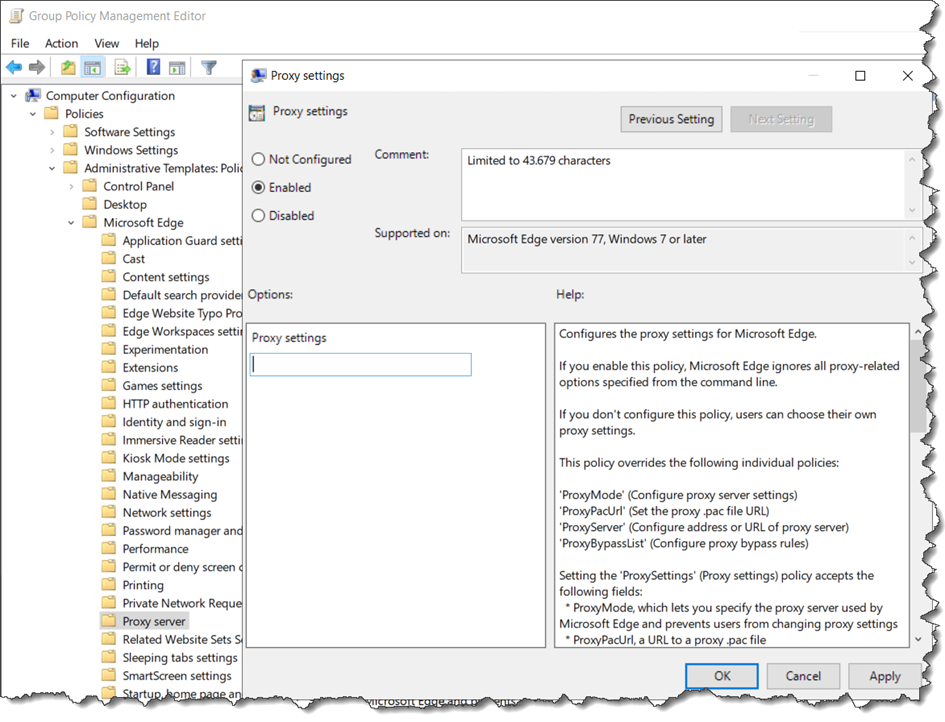
{
  "ProxyMode": "pac_script",
  "ProxyPacUrl": "https://proxy.company.com/proxy.pac",
  "ProxyPacMandatory": false,
  "ProxyBypassList": ""
}
This configuration is stored in the registry: HKLMSoftwarePoliciesMicrosoftEdgeProxySettings
Technical Behavior
- Independent Download: Edge fetches the PAC script directly from the defined URL using its own network stack. The file must be provided via http, https or ftp protocol. Use of file:// protocol is not supported.
- Bypasses System Settings: Windows’ system proxy configuration is ignored.
- In-Memory Caching:
- The PAC script is cached in memory by Chromium’s network service process.
PAC Script Lifecycle
- The PAC script is downloaded once per browser session, specifically:
- At the launch of the first msedge.exe instance, only if no Edge-related network service process is already running.
- Subsequent instances of msedge.exe (e.g., new windows, tabs, or user profiles) reuse the already-loaded PAC script from memory.
- A fresh PAC download occurs only if:
- All Edge processes (including background ones) are fully closed and terminated.
- Edge is launched again, triggering a new network service startup.
- The user manually resets proxy settings via edge://net-internals/#proxy.
- A network change occurs (e.g., IP change, adapter switch, VPN connection).
- The in-memory PAC is considered valid for up to 12 hours.
- Retried on failure (with backoff).
Implications
- Applies only to Edge: Other applications (Chrome, Teams, Outlook, etc.) do not inherit this setting.
- No effect on system services: Applications using WinHTTP or WinINET, such as Windows Update, Office apps, or OneDrive, will not use this PAC unless it is also configured at the OS level.
- No shared PAC cache between Chromium-based apps: Chrome, Edge, Electron apps (e.g., Teams) each load and evaluate PAC files separately.
In this scenario, the PAC script is not configured via Edge policies, but through the Windows operating system—typically via Internet Options or GPO. This configuration can lead to two distinct behaviors, depending on whether or not the “Use Windows Proxy Resolver” policy is enabled.
This is the default behavior when a PAC URL is configured system-wide (e.g., via Internet Explorer LAN settings or registry), but the “Use Windows Proxy Resolver” policy is not enabled.
Technical Behavior
- Edge fetches the PAC script itself, just like in Scenario 1.
- The only difference is the source of the PAC URL: Edge reads it from system settings (AutoConfigURL).
- Edge evaluates the PAC script internally using Chromium’s JavaScript engine.
Implications
- PAC resolution is fully handled inside Edge.
- WinHTTP AutoProxy Service is not involved.
- Caching and refresh behavior is identical to Scenario 1.
This setup gives system administrators central control over the PAC URL without enabling Edge-specific policies.
In this configuration, Edge uses the same proxy resolution logic as WinHTTP-based applications.
Enabling the Resolver
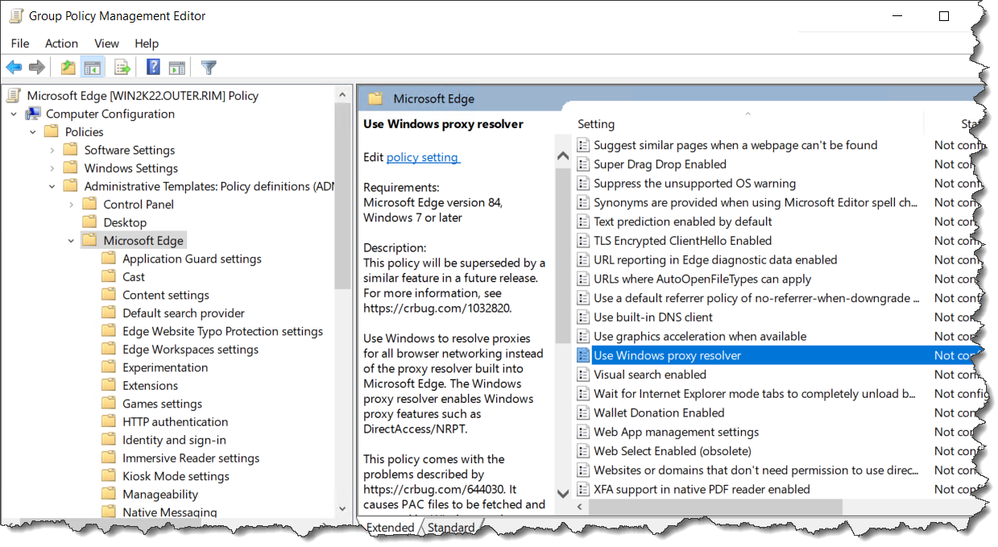
- Group Policy:
- Computer Configuration > Administrative Templates > Microsoft Edge > Use Windows Proxy Resolver
- Sets HKLMSoftwarePoliciesMicrosoftEdgeUseWinHttpProxyResolver = 1
Technical Behavior
- Edge does not download or evaluate the PAC script directly.
- Proxy resolution is performed by the WinHTTP AutoProxy Service.
- Edge queries the OS via WinHttpGetProxyForUrl().
- PAC script is loaded, parsed, and cached by Windows.
Caching & Refresh
- PAC is cached in memory by the OS.
- Refreshed when:
- No TTL: PAC does not expire by time.
Benefits
- Shared proxy logic across all WinHTTP-using apps.
- Reduces duplicated PAC downloads.
- Improved manageability and consistency.
| Configuration | Who Downloads PAC? | Who Evaluates PAC? | Uses WinHTTP Service? |
| Scenario 1 (Edge Policy) | Edge | Edge (Chromium) | ❌ |
| Scenario 2A (System PAC) | Edge | Edge (Chromium) | ❌ |
| Scenario 2B (With Resolver) | Windows | Windows (WinHTTP) | ✅ |
What Happens if Both Are Configured?
If both an Edge-specific PAC policy and a system-wide PAC are configured:
- Edge policy takes precedence.
- Even if the “Use Windows Proxy Resolver” is enabled, it is ignored when ProxySettings is defined.
To use Scenario 2B correctly, avoid setting the Edge-specific ProxySettings policy.
Best Practices for Enterprise Proxy Management
Use Scenario 2B if:
- You want consistent proxy logic across all apps (Edge, Outlook, etc.).
- You want to centralize PAC logic and reduce network load.
Use Scenario 1 if:
- You need to test a new PAC for Edge only.
- You require advanced Edge-only routing with ProxyPacMandatory.
Microsoft Edge supports a native integration with the Windows proxy resolver through policy. This enables clean separation between Chromium-based evaluation (default) and centralized OS-based resolution (WinHTTP).